How to Adjust an Office Chair for Ergonomics: A 2026 Guide
Proper chair adjustments can reduce physical strain and boost daily comfort; learn the essential steps to configure your office seating for long-term health.
By the Niche Picks editorsUpdated November 9, 202610 min readDrawn from our 32 research-based standing desks & ergonomic office reviews
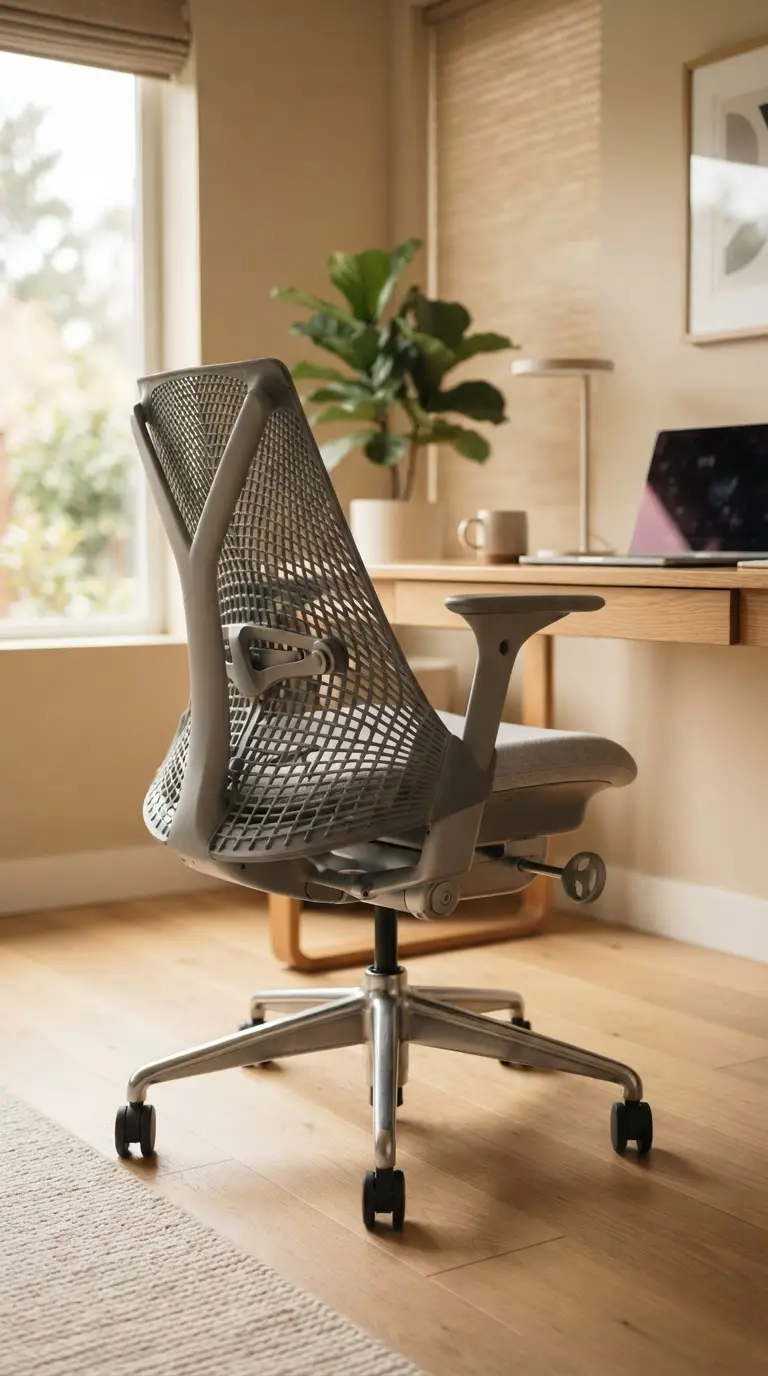
AI-generated editorial illustration; not a product or test photograph.
Short answer
To adjust your office chair, start by setting the seat height so your feet remain flat on the floor and your knees form a 90-degree angle. Next, align the lumbar support with your lower back's natural inward curve. Finally, adjust the armrests so your forearms rest comfortably without elevating your shoulders, keeping a neutral posture.
4
Product listings discussed; not hands-on tests
3/4
Discussed listings with a recorded price
$146.99–$299.99
Recorded listing price range; not a complete setup cost
Key takeaways
Foot position is the foundation of ergonomic seating, requiring flat placement with proper knee alignment.
Lumbar support must align with the natural inward curve of your lower back for effective spinal stabilization.
Armrests should be set at a height that allows your elbows to remain at a 90-degree angle to prevent neck strain.
Active seating requires occasional adjustments rather than relying on a fixed, static position all day.
If your chair lacks specific adjustments like depth or tilt, consider high-quality ergonomic alternatives to improve your setup.
Products discussed in this article
Editorial scores and recorded prices are reference points, not measurements of suitability for every use. Read each review's specifications and limitations.
GABRYLLY Ergonomic Office Chair, High Back Home Desk7.8
SIHOO M18 Ergonomic Office Chair, Mesh Back Desk Chair7.9
SIHOO B100 PRO Ergonomic Mesh Office Chair7.8
GTPLAYER Big and Tall Gaming Chair 400lbs Heavy Duty7.4
Recorded price (USD)
GABRYLLY Ergonomic Office Chair, High Back Home Desk$239.50
SIHOO M18 Ergonomic Office Chair, Mesh Back Desk Chair$146.99
SIHOO B100 PRO Ergonomic Mesh Office Chair$299.99
Comparison of Recommended Ergonomic Chairs
Product
Adjustment Types
Best For
Price
GABRYLLY Office Chair
Tilt lock, Height, Headrest
Warm home offices
$239.50
SIHOO M18
Lumbar, Headrest, Arm height
Budget ergonomic use
$146.99
SIHOO B100 PRO
4D Arms, Lumbar, Recline
Reclined postures
$299.99
GTPLAYER Big and Tall
Backrest, Lumbar, Headrest
Reinforced capacity
N/A
Why Chair Adjustment Matters for Your Health
Ergonomics is not just about comfort; it is the science of designing the workplace to fit the worker. When your office chair is improperly configured, your body is forced to compensate, often leading to chronic lower back pain, neck strain, and shoulder fatigue. By investing time into learning how to adjust an office chair for ergonomics, you minimize these risks. Proper alignment helps distribute your body weight evenly across the seat pan and backrest. For users spending long hours at a desk, our expert picks for long hours emphasize the importance of features like dynamic lumbar support and breathable mesh that supports airflow. When you ignore these adjustments, you invite poor posture, which can become a hard-to-break habit. A well-adjusted chair encourages a 'neutral' seated position, where your joints are naturally aligned, reducing the muscular effort required to stay upright throughout the day. Most modern ergonomic chairs, such as the SIHOO M18, offer multiple points of contact for adjustment. Understanding the mechanical purpose of these levers—whether they control tilt tension, seat depth, or lumbar height—is the first step toward a healthier workflow. If you are struggling with discomfort, consult our common mistakes to avoid to see if simple tweaks can rectify the issue before shopping for new furniture. Remember that no chair is a 'one size fits all' solution; fine-tuning the controls to your specific height and torso length is essential. Even with premium seating, maintaining movement and taking breaks is crucial, as static posture is the enemy of spinal health. Start by assessing your current chair's capabilities and make adjustments incrementally until you feel balanced and supported.
Finding the Perfect Seat Height
The starting point for any ergonomic configuration is seat height. Your goal is to keep your feet planted firmly on the floor or a footrest, with your thighs parallel to the ground. If the seat is too high, it creates pressure on the underside of your thighs, impeding circulation; if it is too low, you may hunch forward, putting excessive stress on your lower back. For those needing extra capacity and stability, the GTPLAYER Big and Tall Chair features a robust gas cylinder that holds height firmly under heavier loads, which is vital for maintaining that perfect 90-degree knee angle. When your feet are properly supported, your hips and knees should sit at approximately the same level. Many ergonomic office chairs use class-3 or class-4 gas lifts to ensure this height remains constant throughout the day. If your feet dangle, do not hesitate to use a footrest or lower your desk height to compensate. Consistency is key. If you find yourself frequently adjusting the height, check if your chair's pneumatic lift is leaking or settling—a sign of mechanical wear. Users who move between sitting and standing should explore the benefits of standing desks to keep their posture dynamic. Once your feet are correctly positioned, observe your workstation's surface. Your elbows should rest near the desk height to prevent shoulder shrugging. If you cannot reach your keyboard comfortably while your feet are flat, your desk height, not your chair, may be the culprit. Proper height isn't just about the seat pan; it is the relationship between the floor, your chair, and your primary work surface. Adjusting this triad correctly will eliminate the most common sources of workstation fatigue.
The 20-Minute Movement Rule
Even the best ergonomic chair cannot prevent discomfort if you remain perfectly still for hours. Try to shift your position, lean back, or briefly stand every 20-30 minutes to maintain circulation.
Mastering Lumbar Support and Backrests
Lumbar support is the most critical element for preventing lower-back pain. The lumbar region of your spine has a natural inward curve, and your chair should support this curve rather than force your spine into a flat, strained shape. If you have an adjustable lumbar support system, like those found on the SIHOO B100 PRO, move the support up or down until it rests snugly against the curve of your lower back. If your chair has a fixed lumbar design, ensure your body fits the curvature properly. If it feels too aggressive or too subtle, you may need to supplement it with an external cushion. Many office chairs for back support are designed with a waterfall seat edge to further encourage healthy alignment by reducing pressure on the back of the knees. Proper backrest tension is also vital. The backrest should follow your movements when you lean back, providing consistent support rather than pushing you forward or letting you collapse backward. Always ensure that your shoulders are relaxed and not hunched when you lean against the backrest. The goal is to maintain the spine's 'S' shape. Avoid 'slumping' into the chair, as this removes the lumbar support from the target area and places the entire load on your spinal discs. Some chairs offer a recline lock; use it to set a preferred working angle, but keep the tension loose enough that you can occasionally shift your position. Shifting weight is healthy, and the chair should facilitate that movement. If your backrest feels rigid, re-examine the tilt tension knob usually located under the seat; increasing the resistance can make a massive difference in how much fatigue you feel after four hours of continuous tasks.
Optimizing Armrests for Forearm Comfort
Armrests are often the most misunderstood component of an ergonomic chair. Their function is not to hold your entire body weight, but to support the weight of your arms, thereby taking the load off your trapezius muscles in the neck and shoulders. You should set the armrest height so that your shoulders are relaxed and your elbows form a 90-degree angle while your hands rest on your keyboard or mouse. In the GABRYLLY Ergonomic Chair, the armrests feature a flip-up design that offers convenience for stowing under desks, but users should be aware that these have limited height and lateral adjustment. If you have adjustable armrests, aim for a width that keeps your arms close to your body. If they are too wide, you will naturally reach outward, which causes shoulder strain over time. For users who need maximum adjustment, looking for '4D' armrests—which move in height, width, depth, and angle—is a wise investment. These allow you to fine-tune the support precisely to your typing style. If you find that your elbows are still hitting the chair or that your shoulders feel tight despite your best efforts, consider the desk surface itself. Does the edge of your desk cut into your forearms? If so, additional desk accessories like cushioned forearm pads or a keyboard tray might be necessary. Avoid leaning your wrists on the edge of the desk or the armrests while typing, as this can put unnecessary pressure on the carpal tunnel. The armrests are a resting spot for the elbows, not a pressure point for the wrists. When properly adjusted, your arms should feel weightless, and your shoulders should remain loose throughout the entire workday.
Check Your Desk Height
No matter how perfect your chair settings are, an incorrect desk height can force bad posture. Ensure your elbows remain at a 90-degree angle while typing; if they don't, lower or raise your desk surface accordingly.
The Role of Tilt and Recline Dynamics
Modern ergonomics acknowledges that a single static position is rarely optimal for an eight-hour shift. Many chairs now feature a 'synchro-tilt' or similar recline mechanism that allows the backrest and seat pan to move in tandem, keeping your hips open and your spine aligned even while leaning. Mastering these controls is essential for best ergonomic office chair utilization. When you use the recline lock, aim to find a position that allows you to read or engage with content without sliding forward on the seat. If you find your chair is 'pushing' you out, the tilt tension is likely too high, or your seat depth is incorrectly set. If your chair supports seat-depth adjustment, you should be able to fit two to three fingers between the back of your knees and the edge of the seat pan. If the seat is too deep, it will press against your calves, impeding blood flow and forcing you to sit on the very edge of the chair, which renders the backrest and lumbar support useless. If the seat is too shallow, you lose support for your thighs, which increases pressure on your sit-bones. Experimenting with these settings can be transformative for those accustomed to discomfort. By allowing your chair to move with you, you promote micro-movements that maintain circulation. Do not fear the recline; it is a feature, not a bug. If your current chair lacks these intermediate adjustment options, it may be time to consult our buying tips to identify models that offer more robust mechanical articulation. The end goal is a chair that acts as an extension of your body, supporting every transition from typing to reading to taking a quick phone call, all without requiring you to manually readjust every time you shift your attention.
Evaluating Ergonomic Hardware Limitations
It is important to recognize that no office chair can fully mitigate the ergonomic costs of an poorly configured workstation. Even a top-tier ergonomic model can fail to provide relief if your monitor is too low or your desk is too high. Our standing desks and ergonomic office category reviews highlight that the chair is only one piece of a larger ergonomic puzzle. For example, if you are using an ergonomic chair but your eyes are constantly looking down at a laptop screen, you will inevitably develop neck pain despite perfect lumbar support. The top of your screen should generally be at or slightly below eye level. If your monitor is fixed, consider using a monitor arm to bring it into the correct position. Similarly, if your chair's armrests do not align with your desk, a clamp-on keyboard tray can offer a lower, more natural input angle for your wrists, which is often more effective than trying to raise your chair to match a high desk. If you are experiencing persistent discomfort, audit your entire environment: floor space, desk height, monitor angle, and chair settings. Many users find that they have the right chair but the wrong desk-to-chair relationship. Comparing different ergonomic features across models can also reveal what your current chair is lacking. For instance, if you prioritize heavy-duty build quality, the GTPLAYER Big and Tall Chair might be the upgrade you need, while those needing office-friendly mesh should look at the SIHOO M18. Ultimately, be wary of the 'magic bullet' mentality—ergonomics is about total environmental synchronization, not just the purchase of a single chair.
Step by step
1Adjust the seat height until your feet are flat on the ground and knees are level with your hips.
2Sit all the way back in the chair so your lower back makes firm contact with the lumbar support.
3Adjust the lumbar support height to cradle the natural curve of your lower spine.
4Set the armrests so your elbows rest at a 90-degree angle without forcing your shoulders up.
5Adjust the backrest recline tension so you can move slightly while remaining supported.
6Ensure your keyboard and mouse are positioned at a height that keeps your wrists neutral.
Quick checklist
Ensure feet are flat on the floor with knees at 90 degrees.
Adjust lumbar support to match the inward curve of the lower back.
Position armrests to keep shoulders relaxed while typing.
Check for any pressure points on the thighs or back of knees.
Ensure your monitors are at eye level to avoid neck bending.
Verify that the backrest tilt tension provides support while shifting.
Clear any objects under the desk to provide full leg room.
Frequently asked questions
How do I know if my lumbar support is adjusted correctly?
Your lumbar support is correct when it feels like a gentle, firm pressure against the natural inward curve of your lower back. It should not feel like it is poking or forcing your spine into an unnatural arch. You should feel consistently supported whether sitting upright or leaning back slightly.
Should my feet be flat on the floor?
Yes, your feet should be flat on the floor to maintain proper circulation and pelvic stability. If your chair is too high, your feet may dangle, which creates pressure on the back of your thighs and leads to leg fatigue. If you cannot lower your chair, use a footrest.
How often should I change my chair's recline setting?
You should change your recline setting throughout the day. Using a static position for hours is detrimental to your spine. Many ergonomic chairs allow for a 'dynamic' recline, which you should use to shift your weight and reduce the load on your lumbar discs during long task shifts.
What if my chair doesn't have adjustable armrests?
If your armrests are fixed and do not align with your desk, they may be doing more harm than good by forcing your shoulders to shrug. If this is the case, consider removing them or using a different chair. Alternatively, raise your seat height and use a footrest to align your arms properly.
Why does my back hurt even after adjusting my chair?
Back pain can stem from your chair, but it also relates to your monitor height, desk height, and lack of movement. Ensure your monitor is at eye level to prevent 'tech neck.' If the pain persists, ensure you are taking frequent breaks to stand up and move, as no chair can fully offset sedentary behavior.
Amazon links are affiliate links; we may earn a commission at no cost to you.
Shortlists in this category
Ranked lists from our standing desks & ergonomic office reviews, limited to listings whose titles confirm the product type, with budget cuts where enough recorded prices sit on both sides of the line.
This page summarizes our research reviews of Amazon listings, listed specifications and captured buyer ratings. It is not a hands-on test. Scores are editorial assessments, not measured performance; prices are recorded snapshots and may change. A category can include both main products and accessories, so its overall price range is not the cost of a complete setup.
Most recent product record update: September 22, 2026. Individual records may be older; this is not a verification date for every claim. Prices on this page were read from the listings Nov 12, 2026 – Nov 13, 2026.
Compare the same kind of standing desks & ergonomic office
Choose the product type first. These groups require a match in the listing title; an import search term alone is not enough. Scores rank our recorded research assessments within each group, not independently measured performance.
Recorded intended fit: Warm home offices requiring space-saving storable seating
Why consider it
Breathable full-mesh seat and backrest
What could change your decision
Lumbar support cannot be adjusted independently
Included Components
High back, wide seat, 3D headrest, flip up arms, silent wheels, steel mechanism, clear user manual & tool kit
Additional Features
3-Stage tilt lock,ergonomic lumbar support, BIFMA certified, class-4 gas lift, Flip up armrest 45°, Large 3D headrest, Stable chair base,support up to 300LBS
Room Type
office, home, bedroom, library,school, meeting room, company
High back, wide seat, 3D headrest, flip up arms, silent wheels, steel mechanism, clear user manual & tool kit
Additional Features
Ergonomic, Adjustable Headrest, Arm Rest, Adjustable Lumbar, Tilt, Back Support, Adjustable Recliner
3-Stage tilt lock,ergonomic lumbar support, BIFMA certified, class-4 gas lift, Flip up armrest 45°, Large 3D headrest, Stable chair base,support up to 300LBS
Values are shown as recorded, without unit conversions or inferred compatibility. Not recorded means unknown, not absent. Prices are snapshots, not current offers. Editorial scores are research judgments, not lab results. Amazon links are affiliate links.
Before treating a comparison as complete
Which details are still unknown?
A specification appearing in a listing is not independent verification. These counts show which shortlisted records contain the same field; a blank record does not mean the product lacks the feature.
Included Components
Recorded for 2 of 2 shortlisted models
Present in every shortlisted record. Check units, exact variants and the current manufacturer documentation before relying on it.
Additional Features
Recorded for 2 of 2 shortlisted models
Present in every shortlisted record. Check units, exact variants and the current manufacturer documentation before relying on it.
Age Range Description
Recorded for 2 of 2 shortlisted models
Present in every shortlisted record. Check units, exact variants and the current manufacturer documentation before relying on it.
Indoor Outdoor Usage
Recorded for 2 of 2 shortlisted models
Present in every shortlisted record. Check units, exact variants and the current manufacturer documentation before relying on it.
Item Type Name
Recorded for 2 of 2 shortlisted models
Present in every shortlisted record. Check units, exact variants and the current manufacturer documentation before relying on it.
Number of Packs
Recorded for 2 of 2 shortlisted models
Present in every shortlisted record. Check units, exact variants and the current manufacturer documentation before relying on it.
For standing desks, check the working-height range, desktop dimensions and exact-model stability evidence. A listed load capacity does not prove stability at your preferred height.
Compare the documented lift capacity with your desktop, monitors, arms and equipment. For converters and monitor arms, check the separate mounting and load requirements.
Read warranty terms for the frame, motor and electronics separately, including exclusions and parts support. Warranty length is not a measured durability result.
If a specification, certification or compatibility detail is absent, mark it as unknown and ask the seller or manufacturer. Do not substitute a star rating, an editorial score or a different model's specification.