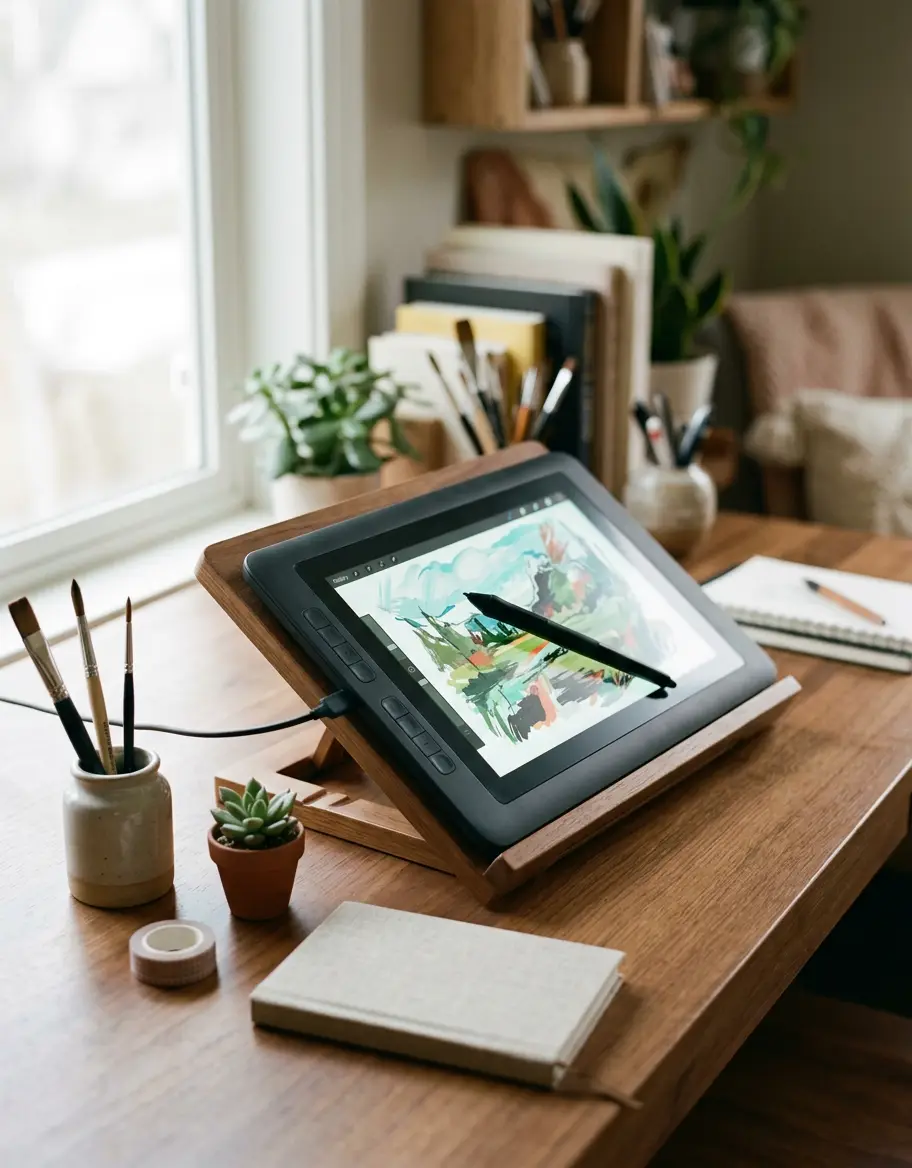
Best Budget Drawing Tablet with Screen for Beginners
We evaluated budget-friendly drawing tablets with screens to find the most capable, low-parallax pen displays for beginner artists without exceeding $300.
By the Niche Picks editorsUpdated October 28, 20268 min readDrawn from our 30 research-based art supplies & tablets reviews
AI-generated editorial illustration; not a product or test photograph.
Short answer
The best budget drawing tablet with a screen for beginner artists is the XP-PEN Artist12 at $169.99 for pure affordability, or the XPPen Artist 13.3 Pro at $211.00 for full lamination and physical dial controls. Both provide natural hand-eye coordination, battery-free styluses, and bundled accessories without the high studio brand price.
4
Product listings discussed; not hands-on tests
4/4
Discussed listings with a recorded price
$169.99–$289.99
Recorded listing price range; not a complete setup cost
Key takeaways
Pen displays dramatically flatten the learning curve for beginners by letting you draw directly where your hand rests.
Pressure level specs above 8,192 provide diminishing returns; panel lamination and surface tooth matter far more.
The XP-PEN Artist12 offers the lowest cost of entry at $169.99, though it features an unlaminated panel with minor parallax.
Investing slightly more in the XPPen Artist 13.3 Pro ($211.00) delivers full optical lamination and a physical shortcut dial.
For artists needing arm-movement room, the HUION Kamvas Pro 16 ($289.99) delivers a 15.6-inch workspace under $300.
Products discussed in this article
Editorial scores and recorded prices are reference points, not measurements of suitability for every use. Read each review's specifications and limitations.
XP-PEN Artist12 11.6 Inch FHD Drawing Monitor Pen7.5
XPPen Artist 12 3rd 11.9" Drawing Tablet with Screen8.5
XPPen Artist 13.3 Pro 13.3" Drawing Tablet7.8
HUION Kamvas Pro 16 Drawing Tablet with Screen,120%8.1
Recorded price (USD)
XP-PEN Artist12 11.6 Inch FHD Drawing Monitor Pen169.99 USD
XPPen Artist 12 3rd 11.9" Drawing Tablet with Screen209.99 USD
XPPen Artist 13.3 Pro 13.3" Drawing Tablet211 USD
HUION Kamvas Pro 16 Drawing Tablet with Screen,120%289.99 USD
Budget Drawing Tablets with Screen Comparison
Product
Price
Screen Size
Panel Technology
Stylus Levels
Physical Controls
XP-PEN Artist12
$169.99
11.6 in
Non-laminated IPS (Matte Film)
8,192
6 buttons + Touch Strip
XPPen Artist 12 3rd
$209.99
11.9 in
Fully Laminated (Etched AG Glass)
16,384
8 buttons + 2 X-Dials
XPPen Artist 13.3 Pro
$211.00
13.3 in
Fully Laminated (Anti-Glare)
16,384
8 buttons + Red Dial
HUION Kamvas Pro 16
$289.99
15.6 in
Fully Laminated (Etched AG Glass)
8,192
6 buttons + Touch Bar
Why Choose a Screen Tablet Over a Traditional Graphics Slate?
For beginner digital illustrators, the hardest hurdle is rarely software tools or brush presets—it is the hand-eye disconnect. Traditional screenless graphics slates map strokes onto a separate computer monitor while your hand moves across an opaque desk slab. While functional, mastering that spatial division takes weeks of dedicated practice. A drawing monitor, or pen display, bridges that gap immediately by letting you render strokes directly where the stylus touches the glass.
According to our drawing tablet guide, interactive pen displays allow traditional artists transitioning from ink and graphite to apply their muscle memory without friction. Gesture drawing, crosshatching, and precision line art feel instinctive because your eyes track the physical nib rather than an off-axis cursor.
Historically, pen displays carried high four-figure price tags that kept novices away. Today, entry-level manufacturers offer complete desktop pen displays between $160 and $300. These displays connect directly to your laptop or desktop computer, functioning as a secondary monitor with high-precision digitizing layers. When planning your studio setup, explore how much a drawing tablet costs to determine whether an entry display matches your budget, or check our broader breakdown of the best drawing tablets to contrast screenless models against dedicated interactive displays.
XP-PEN Artist12: The Most Accessible Sub-$170 Screen
At a listed price of $169.99, the XP-PEN Artist12 stands as one of the lowest-cost paths to direct on-screen drawing. Built around an 11.6-inch IPS panel boasting full 1920x1080 resolution, it delivers tight pixel density that keeps linework crisp and UI elements readable. For students or beginners constrained by limited desktop real estate, the compact chassis packs six customizable shortcut keys alongside a slim touch strip configured for quick canvas zooming and brush scaling.
Input is managed by the P06 battery-free stylus, which delivers 8,192 pressure sensitivity tiers and integrates a dedicated digital eraser node on the tail cap. XP-Pen bundles eight replacement nibs, a cylindrical pen stand, and a two-finger drawing glove in the retail package, keeping operational setup costs low. Color rendering is specified at 72 percent NTSC (roughly 100 percent sRGB), offering reliable saturation for beginner digital painting.
The trade-off at this sub-$170 tier is the screen architecture. The Artist12 features an unlaminated panel assembly, leaving a physical air gap between the outer glass and internal LCD pixels. This produces optical parallax—a slight visual offset between the physical stylus nib and the active cursor beneath—especially near the display corners. Software calibration minimizes this gap, and the factory matte overlay introduces pleasant mechanical drag that dampens the slickness of bare glass, making the XP-PEN Artist12 an exceptional entry point for beginners on strict budgets.
XPPen Artist 12 3rd: Compact Precision with Etched Glass
Priced at $209.99, the XPPen Artist 12 3rd represents a generational leap over entry-level pen displays by replacing stick-on plastic films with chemically etched anti-glare glass. Plastic protective overlays can scratch and peel under intensive drawing sessions, whereas etched glass provides an enduring, paper-like tooth that controls pen travel without wearing down prematurely.
The 11.9-inch full HD display is fully laminated, bonding the outer glass directly to the underlying LCD. This tight manufacturing tolerance eliminates cursor offset and minimizes visual parallax, ensuring strokes track accurately even when holding the stylus at natural drawing angles. The bundled X4 stylus registers line generation at an initial activation force of just two grams, preventing missed inputs during delicate crosshatching. XP-Pen markets 16,384 levels of pressure sensitivity; while human motor control cannot discern the practical difference beyond standard 8,192 levels, signal transmission remains remarkably smooth.
Ergonomically, the chassis incorporates two physical X-Dial rotary wheels alongside eight tactile shortcut keys, allowing creators to manipulate canvas rotation and brush size without reaching for a keyboard. Connectivity supports both standard 3-in-1 cabling and direct dual USB-C configurations. With ten replacement nibs, a desktop stand, and a drawing glove included, the XPPen Artist 12 3rd offers refined drafting mechanics for artists who prefer portable displays.
XPPen Artist 13.3 Pro: The Sweet Spot for Size and Shortcuts
For many digital artists, an 11-inch display can feel constrained once brush menus, layer stacks, and color wheels populate the interface. The XPPen Artist 13.3 Pro hits a practical sweet spot, combining a 13.3-inch active drawing area with full panel lamination for $211.00. The 1920x1080 panel covers 123 percent sRGB, providing vibrant color rendition and solid tonal separation right out of the box.
The standout physical feature of the Artist 13.3 Pro is its red mechanical dial, situated directly between eight programmable membrane buttons. The dial turns with defined tactile clicks, giving artists immediate, tactile control over brush diameter, layer opacity, or zoom commands without interrupting their line work. XP-Pen packages the monitor with an adjustable desktop drawing stand, an aluminum-style pen case holding eight replacement nibs, and a drawing glove.
The battery-free stylus offers 60 degrees of tilt detection and 16,384 advertised pressure levels at a 220 report rate. Because the display is fully laminated, the pen tip sits directly on top of the rendered pixels, effectively curbing the parallax that plagues non-laminated entry tablets. Weighing little while maintaining a rigid plastic frame, the XPPen Artist 13.3 Pro provides an expansive, balanced digital canvas for beginner illustrators wanting room to work.
HUION Kamvas Pro 16: Expansive 15.6-Inch Canvas Under $300
Beginners who come from large sketchbooks or prefer broad gesture strokes from the elbow often find 11- to 13-inch monitors limiting. The HUION Kamvas Pro 16 solves this by offering a full 15.6-inch active drawing area for $289.99, keeping a studio-sized work surface firmly below the $300 threshold.
Huion utilizes a fully laminated IPS panel covered by chemically etched anti-glare glass, cutting optical reflections while giving the PW507 battery-free stylus balanced tactile bite. Lamination ensures precise cursor alignment across the 1920x1080 canvas, supported by a 1000:1 contrast ratio and a rated color volume of 120 percent sRGB (92 percent AdobeRGB). The stylus operates with 8,192 pressure increments and 60 degrees of tilt recognition, tracking cleanly without battery charging cycles.
The physical layout of the Kamvas Pro 16 includes six programmable click buttons and a responsive central touch bar on the left bezel. Huion bundles the ST200 metal-hinge foldable stand in the box, which adjusts between 20 and 60 degrees to prevent neck strain during long drawing sessions. With ten spare nibs, a pen cradle, and a drawing glove included, the HUION Kamvas Pro 16 provides substantial workspace value for aspiring animators and concept illustrators.
Parallax, Lamination, and Texture: What to Look For
When comparing budget drawing displays, marketing materials often prioritize astronomical pressure ratings—such as 16,384 levels over 8,192. In practical drafting, human hand control plateaus well before these numbers. What you actually feel and see during every stroke comes down to two hardware factors: optical parallax and surface texture.
Panel Lamination and Parallax: Parallax refers to the spatial distance between your physical pen tip and the virtual cursor displayed on the LCD. In unlaminated displays, an air gap separates the outer glass from the display layer, causing the stroke to appear slightly displaced if your viewing angle shifts. Fully laminated panels fuse the layers together into a single unified piece, eliminating the air gap so the line generates directly under the nib.
Etched Glass vs. Matte Film: Raw monitor glass is slick and reflective, causing plastic nibs to slide uncontrollably. Entry displays solve this either with a pre-applied matte plastic film or chemically etched glass. While matte films work adequately, they can wear down, bubble, or scratch over time. Chemically etched glass alters the glass structure itself, providing durable surface tooth that simulates natural paper drag without degrading.
Before purchasing, review our comprehensive art supplies and tablets collection to align your workspace requirements with your hardware choices.
Connecting and Configuring Your New Display
Operating a budget pen display requires understanding that these devices are specialized input monitors, not standalone computers like an iPad. They require continuous tethering to a host PC, Mac, Chromebook, or compatible Android device to provide processing power and software execution.
Most modern budget displays utilize a 3-in-1 cabling harness. This single cable splits into three connectors at the computer end: an HDMI cable for video output, a USB-A cable for data and stylus tracking, and a secondary USB connector (or wall adapter) for power delivery. If your laptop lacks an HDMI port and features only modern USB-C ports, ensure your display supports full-featured single-cable USB-C to USB-C connectivity with DisplayPort Alt Mode, or acquire a dedicated multiport adapter.
Once connected, proper software installation is essential. Always download the latest official drivers directly from the manufacturer portal before connecting the tablet, and uninstall any legacy digitizer drivers from previous tablets to avoid software conflicts. Within the driver suite, calibrate your pen tip across the multi-point screen grid while holding the stylus at your standard drawing tilt. This custom alignment compensates for your natural grip angle, ensuring zero cursor discrepancy during fine linework. For detailed beginner workflows, consult our guide on how to use a drawing tablet.
Quick checklist
Verify your computer has an available HDMI port or DisplayPort-capable USB-C port.
Decide whether your desk space favors a portable 11-13" unit or a larger 15.6" monitor.
Prioritize fully laminated screens to eliminate optical parallax between nib and cursor.
Opt for chemically etched glass if you want permanent paper-like tooth without film scratches.
Confirm that essential accessories like stands, extra nibs, and cables are included in the box.
Uninstall any older graphics tablet drivers before installing the new display software.
Frequently asked questions
Can a budget drawing tablet with a screen work without a computer?
No. Budget pen displays like the XP-PEN Artist series and HUION Kamvas Pro are secondary input monitors, not standalone computing tablets. They require a connected PC, Mac, Chromebook, or compatible mobile device to supply video output, processing power, and digital drawing software.
Does 16,384 pressure sensitivity make a big difference over 8,192?
In practice, no. Pressure levels largely plateau at 8,192 increments because human fine motor control cannot exploit fine micro-variations beyond that threshold. Initial activation force, consistent signal tracking, and physical surface tooth impact drawing feel far more than advertised pressure numbers.
What is optical parallax on a drawing screen?
Parallax is the visual gap between your physical pen nib on the outer glass and the digital cursor rendered on the underlying LCD screen. Unlaminated panels have an air gap that makes this offset noticeable, while fully laminated screens fuse the glass and display to eliminate it.
Do budget drawing styluses need batteries or charging?
Most modern budget pen displays, including models from XP-Pen and Huion, utilize passive electromagnetic resonance (EMR) styluses. These pens draw wireless power directly from the tablet digitizer board, meaning they never require internal batteries or charging cables.
Are replacement nibs expensive to maintain?
No. Most manufacturers bundle 8 to 10 replacement plastic nibs inside the pen stand or storage case at purchase. Under regular daily sketching, a single nib lasts several months, meaning the included supply typically covers one to two years of regular drawing.
Amazon links are affiliate links; we may earn a commission at no cost to you.
Sources and limits
This page summarizes our research reviews of Amazon listings, listed specifications and captured buyer ratings. It is not a hands-on test. Scores are editorial assessments, not measured performance; prices are recorded snapshots and may change. A category can include both main products and accessories, so its overall price range is not the cost of a complete setup.
Most recent product record update: October 5, 2026. Individual records may be older; this is not a verification date for every claim.
Choose the product type first. These groups require a match in the listing title; an import search term alone is not enough. Scores rank our recorded research assessments within each group, not independently measured performance.
Screen surface may require a matte protector for bite
Connectivity Technology
3-in-1 HDMI, USB
USB
Compatible Devices
Desktop, Laptop, Smartphone, Tablet
Not recorded
Additional Features
99% sRGB and ΔE<1.5 color accuracy,16.7 million colors, AG etched glass+Full lamination, Magnetic X4 Pen with 16K Precision, The 33% narrower bezels, X-Dial Wheels+8 customizable keys
60° Tilt Support, Anti-Glare Glass, Full Lamination, Programmable Press Key
Values are shown as recorded, without unit conversions or inferred compatibility. Not recorded means unknown, not absent. Prices are snapshots, not current offers. Editorial scores are research judgments, not lab results. Amazon links are affiliate links.
Before treating a comparison as complete
Which details are still unknown?
A specification appearing in a listing is not independent verification. These counts show which shortlisted records contain the same field; a blank record does not mean the product lacks the feature.
Connectivity Technology
Recorded for 2 of 2 shortlisted models
Present in every shortlisted record. Check units, exact variants and the current manufacturer documentation before relying on it.
Pressure levels plateau; parallax and texture are what you feel.
For wet media, check paper sizing, composition and format as well as weight; even heavy paper can buckle depending on water use and stretching.
Lightfastness ratings decide whether work survives a decade.
If a specification, certification or compatibility detail is absent, mark it as unknown and ask the seller or manufacturer. Do not substitute a star rating, an editorial score or a different model's specification.